Camisetas estilo cartoon que he diseñado, todas las camisetas en:
T-Shirts I have designed, here:
http://www.latostadora.com/danimix1983
Cada semana nuevas caras!
Every week new faces!
martes, 14 de febrero de 2012
martes, 7 de febrero de 2012
Concept Art: Tilthan
A Sci-Fi Concept Art 
7-8 hours of work with photoshop.
Tilthan, the city of the frozen lake!

7-8 hours of work with photoshop.
Tilthan, the city of the frozen lake!

Mutant
I did this work using some references, a Jason Sthatan photo (one of my fav actors) and some others ^^.
Used photoshop, 2 hours of work.
Hope you like it!

Used photoshop, 2 hours of work.
Hope you like it!

sábado, 12 de marzo de 2011
New Video : Jack Sparrow
I uploaded a new Video :)
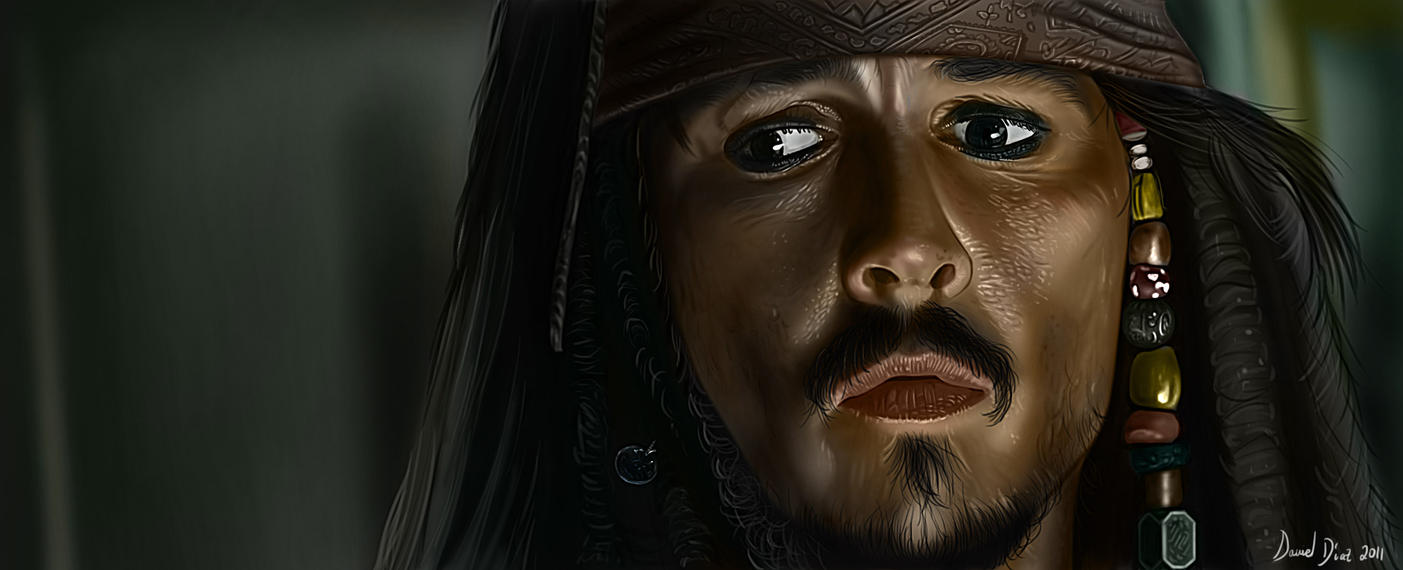
A portrait of Jack Sparrow from Pirates of Caribbean done with a wacom tablet and photoshop.
Time of work: 4 hours
Tutorial here: http://danimix1983.blogspot.com/2011/01/photoshop-tutorial-how-to-make-digital.html
Video:

A portrait of Jack Sparrow from Pirates of Caribbean done with a wacom tablet and photoshop.
Time of work: 4 hours
Tutorial here: http://danimix1983.blogspot.com/2011/01/photoshop-tutorial-how-to-make-digital.html
Video:
Final Pic:

martes, 15 de febrero de 2011
Photoshop Tutorial: How to make hair
On this tutorial I´ll explain how I make the hair on my digital portraits.
This example is a 15 min work.
We´ll need 3 layers and 3 different brushes, one brush for each layer.

Hair layers.
All of these layers have Normal mask
with 100% Opacity and 100% fill.
Start painting on layer1: Basic Hair Tones
Brush1 settings

Select a Hard Round Brush and configure it like the pic shows.
Also On Brush Tip Shape set: 5% Spacing and 25% hardness.
Press F5 to open the Brush settings window and configure it like the pic shows.
If you want to save this brush, here is explained how:
http://danimix1983.blogspot.com/2011/01/photoshop-tutorial-ironman-metal-effect.html
You should get something like this: (All done on layer1 with brush1 and playing with some color)


Layer2: Adding volume and details on the hair.
You will need another brush for painting on this layer.
Brush2 settings:

The brush is under default brushes, named
Round Fan Stiff Thin Bristles, select it and
Press F5 to open the Brush settings window.
Configure it like the pic shows.
Only check transfer with pen Pressure on.
You should get something like this: (All done on layer2 with brush2)

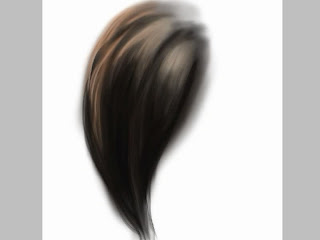
Redefine edges on layer1 erasing some parts.
 Layer3: Final touches:
You will need another brush for painting on this layer.
Brush3 settings:

This brush is great for adding smalls details on the hair.
This is the result using this brush on layer3:


This example is a 15 min work.
We´ll need 3 layers and 3 different brushes, one brush for each layer.
Hair layers.
All of these layers have Normal mask
with 100% Opacity and 100% fill.
Start painting on layer1: Basic Hair Tones
Brush1 settings

Select a Hard Round Brush and configure it like the pic shows.
Also On Brush Tip Shape set: 5% Spacing and 25% hardness.
Press F5 to open the Brush settings window and configure it like the pic shows.
If you want to save this brush, here is explained how:
http://danimix1983.blogspot.com/2011/01/photoshop-tutorial-ironman-metal-effect.html
You should get something like this: (All done on layer1 with brush1 and playing with some color)


Layer2: Adding volume and details on the hair.
You will need another brush for painting on this layer.
Brush2 settings:

The brush is under default brushes, named
Round Fan Stiff Thin Bristles, select it and
Press F5 to open the Brush settings window.
Configure it like the pic shows.
Only check transfer with pen Pressure on.
You should get something like this: (All done on layer2 with brush2)


Redefine edges on layer1 erasing some parts.


You will need another brush for painting on this layer.
Brush3 settings:

This brush is great for adding smalls details on the hair.
This is the result using this brush on layer3:


Finally we can soft a little the hair:
Select the smudge tool:
Smudge tool + brush2 and paint on the same direction you painted the hair with 75% strength.

Here are some results using this method:


lunes, 31 de enero de 2011
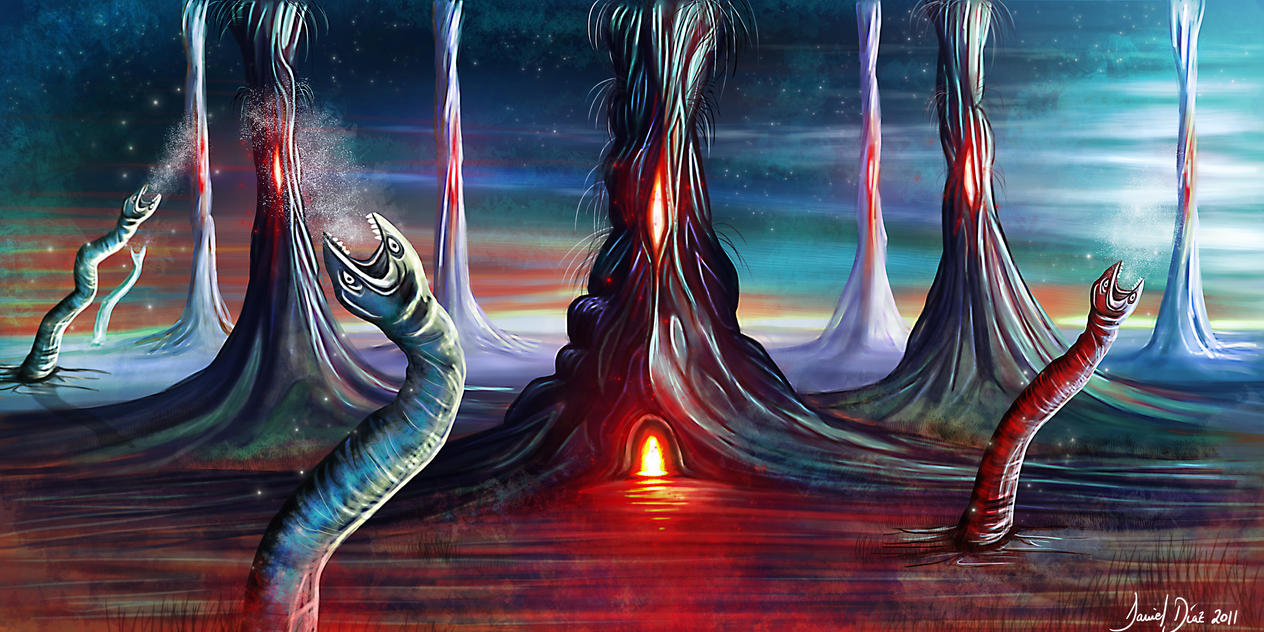
Worm Planet
A concept art speed painting of a weird and crazy planet, infested by huge worms :)

Deviantart Link: http://danimix1983.deviantart.com/#/d38hbj7

martes, 18 de enero de 2011
Photoshop Tutorial - Ironman metal effect
On this tutorial I´ll show you how I did the metal effect on my Ironman Speed painting:

We´ll need two new brushes for making the Metal Effects, one for lights and another one for shadows.
For lights ---> dodge tool.
For shadows --> burn tool.
STEPS:
1. Select the dodge tool on the left tool bar:
 dodge tool icon.
2. Settings of the dodge tool:

As you can see on this pic, select the Rough Round Bristle Brush under default brushes of photoshop.
Dodge Range = Highlights
Exposure = beetween 50% - 100%
Protect Tones Unchecked.
3. Settings of the Brush Rough Round Bristle (press F5 or go to Window/Brush)

Only transfer and Smoothing checked.
On transfer options be sure to set control = Pen Pressure.
Now we are ready, we can save our new brush with the following steps:

Our new brush will be saved here :)

Here is the Metal effect using this new dodge Brush:

Paint in the same direction all the time.
Finally, repeat all the steps we have done with the dodge tool but now with the Burn Tool.

Here is the Metal effect using this new Burn Brush:
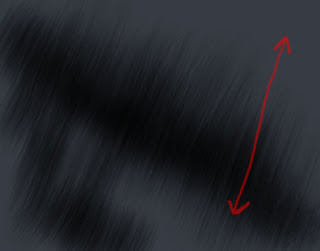
Paint in the same direction all the time.
So you have now 2 new brushes, use the dodge tool for making lights and the burn tool for making shadows.
Here is the video:

We´ll need two new brushes for making the Metal Effects, one for lights and another one for shadows.
For lights ---> dodge tool.
For shadows --> burn tool.
STEPS:
1. Select the dodge tool on the left tool bar:
dodge tool icon.2. Settings of the dodge tool:

As you can see on this pic, select the Rough Round Bristle Brush under default brushes of photoshop.
Dodge Range = Highlights
Exposure = beetween 50% - 100%
Protect Tones Unchecked.
3. Settings of the Brush Rough Round Bristle (press F5 or go to Window/Brush)

Only transfer and Smoothing checked.
On transfer options be sure to set control = Pen Pressure.
Now we are ready, we can save our new brush with the following steps:

Our new brush will be saved here :)

Here is the Metal effect using this new dodge Brush:

Paint in the same direction all the time.
Finally, repeat all the steps we have done with the dodge tool but now with the Burn Tool.
Here is the Metal effect using this new Burn Brush:

Paint in the same direction all the time.
So you have now 2 new brushes, use the dodge tool for making lights and the burn tool for making shadows.
Here is the video:
Suscribirse a:
Entradas (Atom)